

/image%2F1896381%2F20151209%2Fob_cb2b49_obd365-com.png)


Somebody explain to me the main differences between that IM608 and IM608 pro?
Articles récents
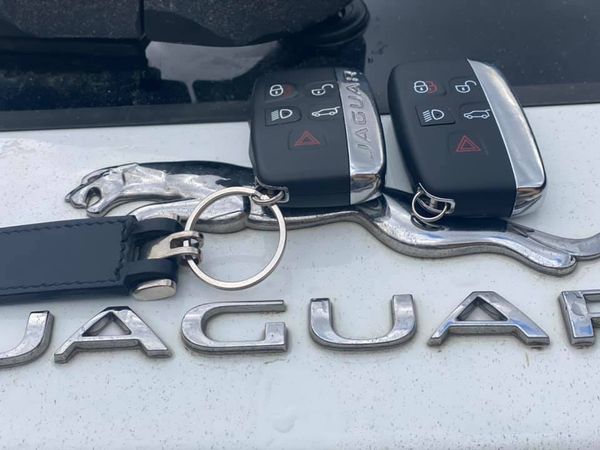
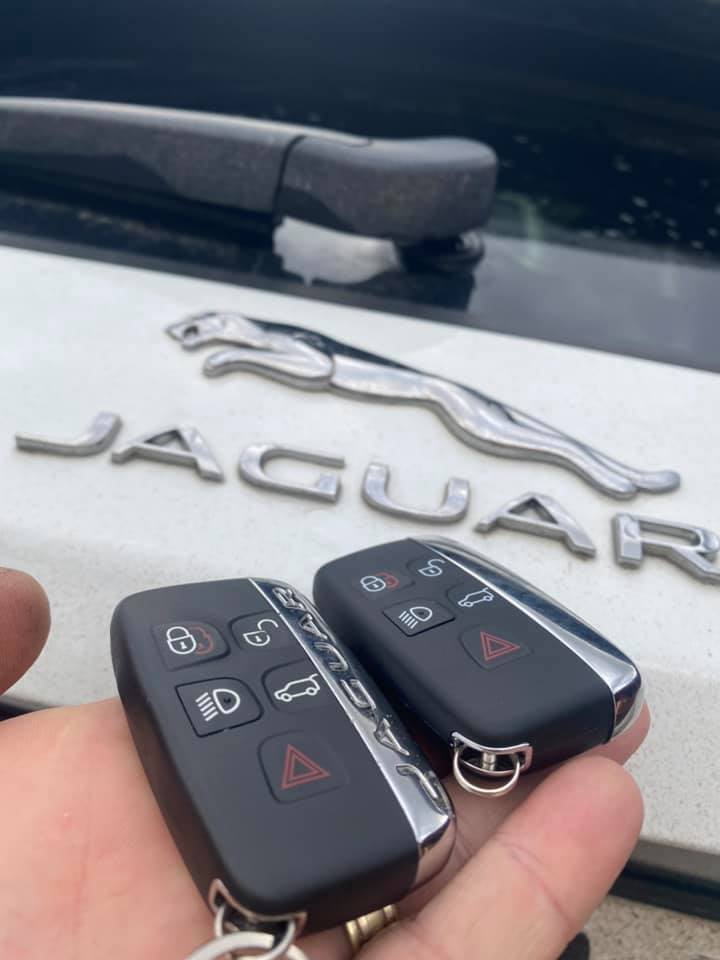
Autel IM608 Adds Jaguar F-Pace 2016 Smart Key Success
I have added a smart key (5 buttons) to a Jaguar F-Pace year 2016 using Autel MaxiIM IM608today. It is kvm out job. A safe and emotionless work.
Mask 1M12S MC9S12XEQ384.
The Auteltech lists only F-Pace from 2017 to 2018. I did a 2016 model no issue.
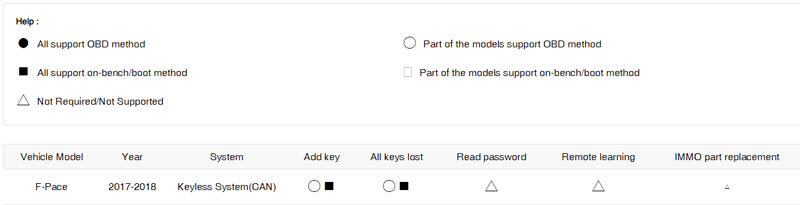

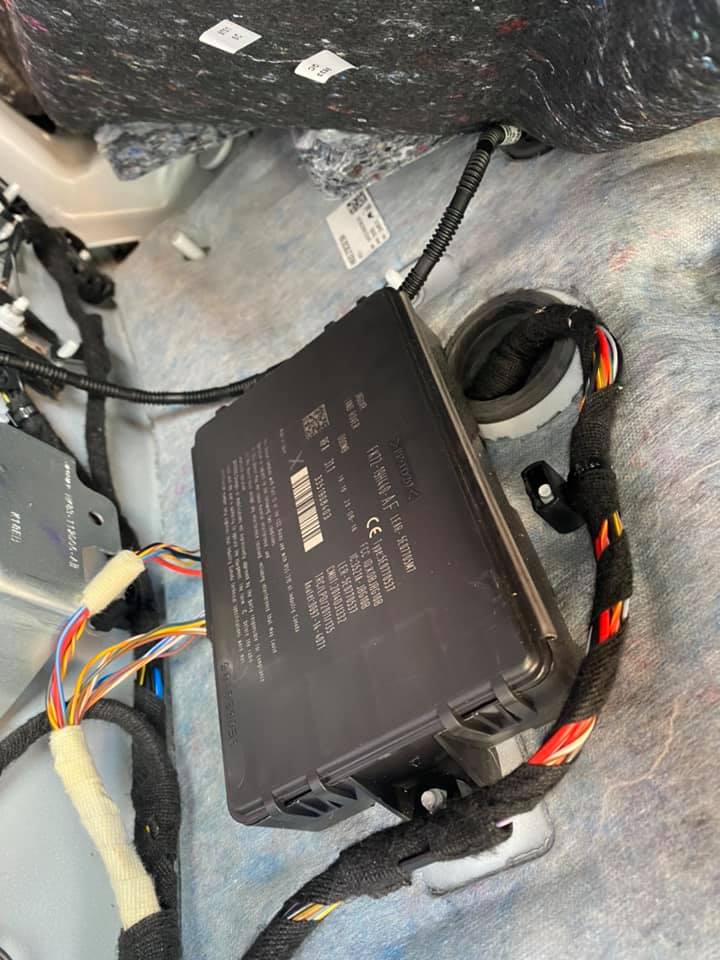
Remove KVM module and follow operation guide in IM608
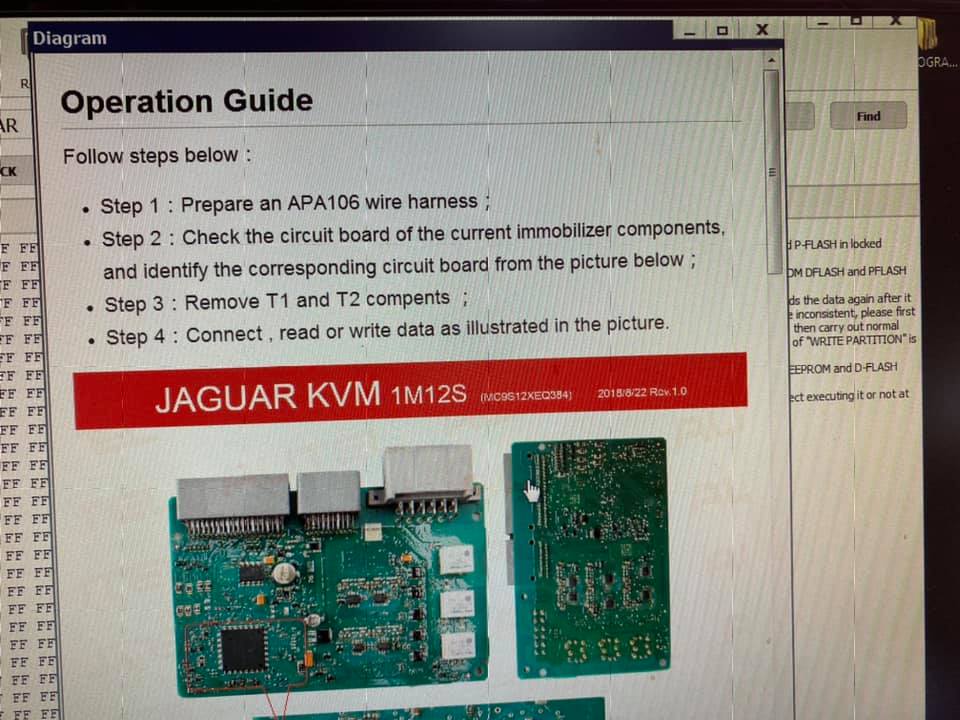
Prepare an APA106 wire harness.
Check the circuit board of the current immobilizer components and identify the corresponding circuit board from the picture below
Remove T1 and T2 components
Connect, read or write data as illustrated in the picture
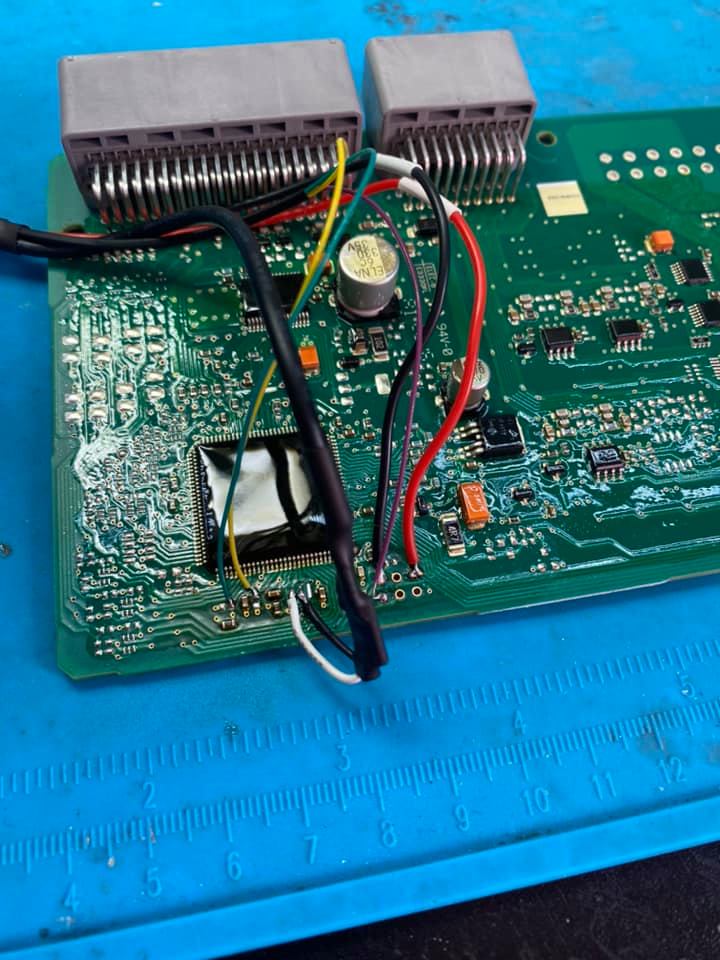
Then follow autel im608 prompts to add a dealer key


http://www.key-programmer.org/2021/02/05/autel-im608-adds-2016-jaguar-f-pace-smart-key/
Publicité
Godiag GT100 Breakout Box Test Reports
Godiag GT100 Breakout box is tested by an increasing number of users, they all think highly of it for what it do, in short, it is good quality, easy to use, help save much money, helps narrow down the issue etc.
Please read carefully what they’ve tested, overall the review is unbiased, not from the seller:
- Very well made, solid junction box with good quality strong harness and connectors.
Great bit of kit, easily connected to car using ECU modules and straight forward to use.
Great value for money, able to use on multiple vehicles.
Overall, great product if you want to control you own destiny with car fault codes.
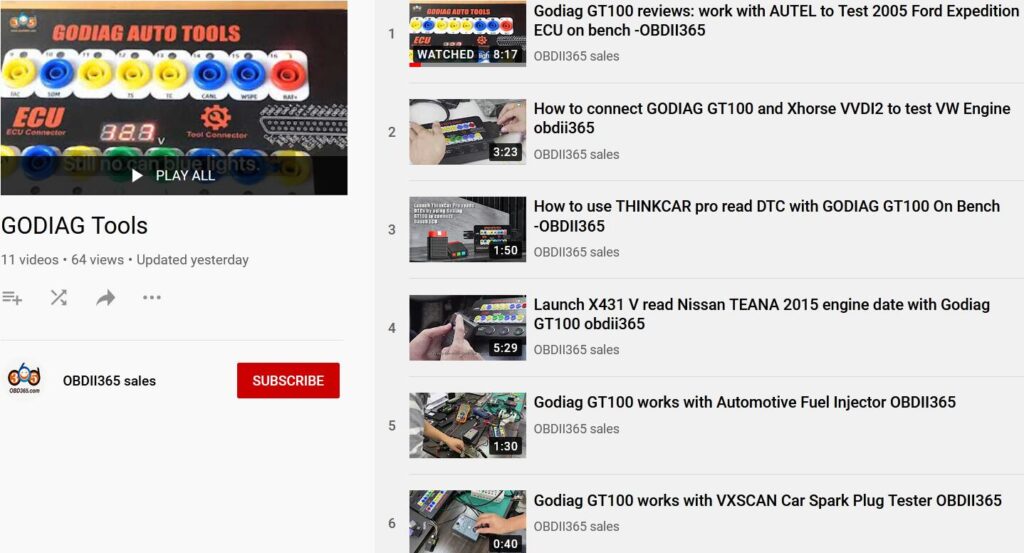
For some users feedback there is no instruction in the package, the manufacturer will arrange add it in the package. So far, please refer to obdii365.com videos, the below link include all we tested:
https://www.youtube.com/playlist?list=PLYFyJLWubsfvyyQS1cKaBeloa7TUO87c0
The package comes with plenty of adapters, jumper cables and accessories for use.
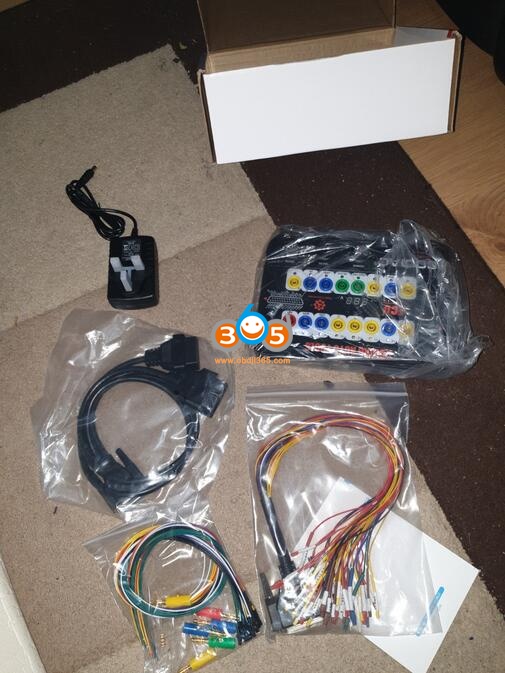
- for doing diagnostics, vehicle immobilizer & security work whether it be on the bench with the included power adapter or in the vehicle with the OBD II port supplying power.
- I always use this to verify that the networks are communicating properly and that there is proper power and grounds being supplied to the box assembly. You don’t want to hook your very expensive scan tool up and it be fired because you didn’t have the proper powers and grounds from somebody’s previous shoddy work on a vehicle.
- Godiag GT100 is the easier one comparing with other brands of Breakout boxes, it comes with additional features for doing ecm, ecu repair on vehicles.
- For diagnosing your car when you have a check engine light, having this definitely helps us narrow down the issue.
- Reset the check engine light
- Can save your settings on your radio when you change your batteries, it is very cool.
- Able to use GT100 without having to get a scanner. It has the potential to save money on diagnosing car issues and repairs. Mine has worked well with great accuracy.
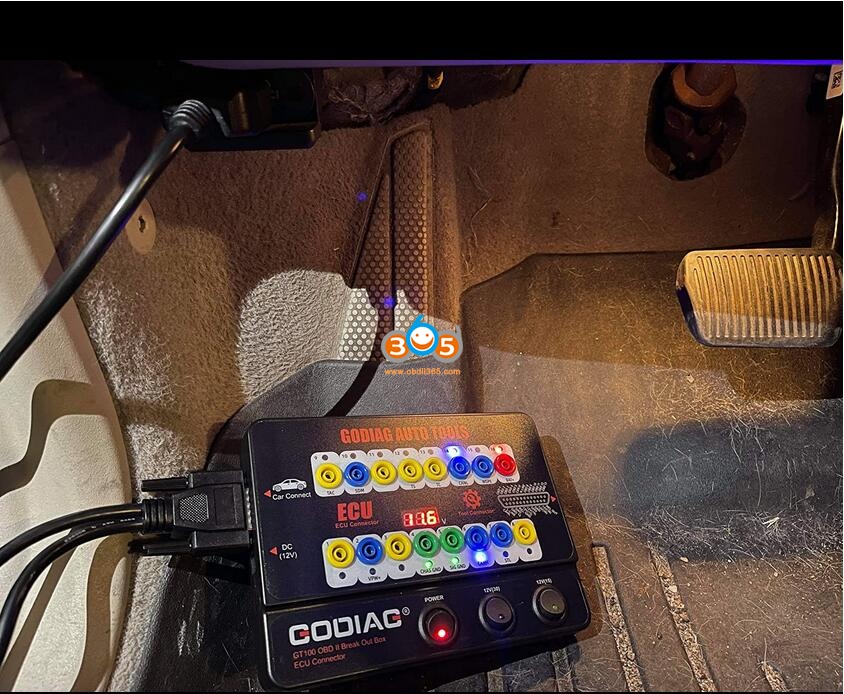

- Can be connected with multiple modules. Strong compatibility, making use and diagnostics more integrated and robust.
- Give early stage of signal/alert that need to work on before it completely breakdown, this helps to save a fortune and avoid a great chance of standing in the middle of nowhere waiting for rescue.
- Godiag GT100 supplies the vehicle with power when you are transferring batteries to avoid data loss which is another plus to this box.
- 12. Using a Vident scanner and the Godiag GT100 breakout box to perform a bench test for the ECU remove from the car (with can-bus error, airbag light on and niggling power problems, but no idea get any further). Turned out to be a corroded pin that was preventing the communication. Great outcome and saved a fortune. Fantastic bit of kit and you don’t need an expensive scanner to pair with it.
- Plugged the socket under the dash into Godiag GT100 and turned the ignition. Soon after, a few of the LEDs lit as we expected with varying levels of brightness. The brightness of the LED also requires interpretation, as a weakly lit LED lets us know how good or bad the particular part of the car is.
- Used Godiag GT100 on a Mercedes and the VVDI2 platform. If you know what you are doing it’s a great tool which shows the results in real time.
…
Godiag GT100 Breakout Box Using tips:
Please make sure you’re fully aware of the capabilities and use of GT100 as with little or no experience just as with other tools, equipment you can do thousands of dollars to a vehicle if not properly trained or knowledgeable with what you’re doing.
Enjoy!
LAUNCH X431 PAD V Updated Subaru ECU Reprogramming
The Subaru ECU reprogramming function has been added to LAUNCH X431 PAD V, take a look at how to do it.

If you select "ECU reprogramming", ...

There are three ways. Select "Manual selection by vehicle".

It seems to be compatible with these car models.
XV
WRX
Tribeca
Outback
Levorg
Legacy
Impreza
Forester
BRZ

If you select "Select by ECU part number", it seems that it will search for software that can be reprogrammed by entering the part number of the currently installed ECU.
For Launch X431 PAD V, please contact
Whatsapp: +86 18259252285
Email: Sales@OBDII365.com
Skype: OBDII365.com
Which Adapter to use with XP400 Pro to read EWS32?
Although BMW EWS is a very easy job can be done by cheap AK90 at $30, it is just nice to know Autel MaxiIM can do EWS3 if happens to have it in hand.
Which Autel can do?
*XP400 cannot read/write EWS3. Require XP400Pro.
What adapter to use?
Ews3 adapter (APB114 EWS3 adapter board) the tool tells you what to connect the wire to
APB114 EWS3 adapter is included in IMKPA Accessories (Needs to Buy IMKPA AccessoriesSeparately).


Test report:
EWS3 flawless using Im608pro+ imkpa in ews3
also write a key
Adapter is APB114
I have the ak90 I just choose to do it this way and it worked out a whole lot easier and faster
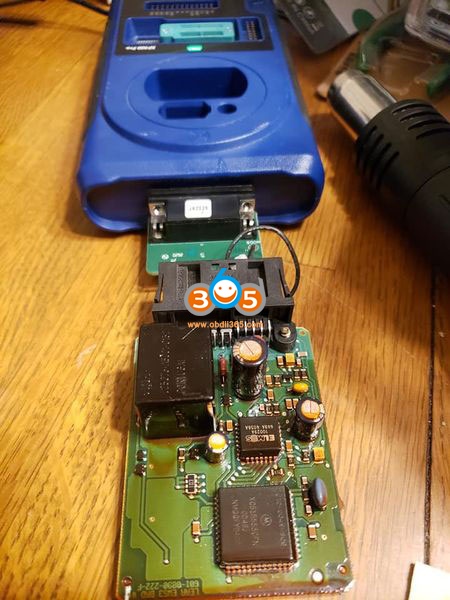
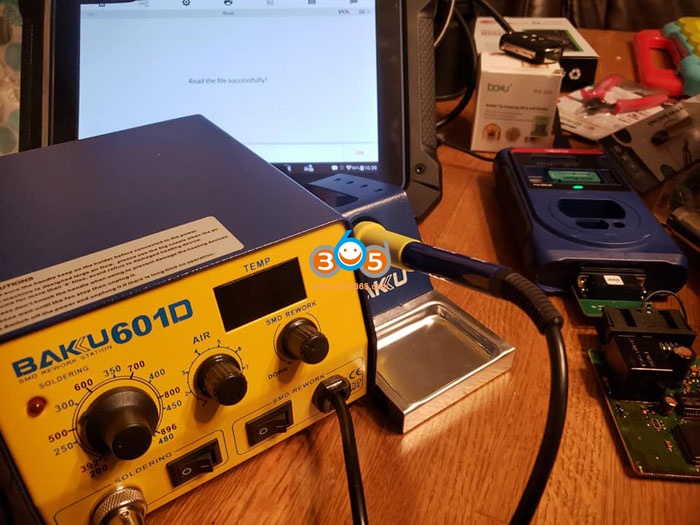


FYI: IM608 does EWS4 as well. Doesn’t require EWS4 adapter, direct read and write.
Publicité
How to Install AnyDesk for OBDSTAR Android Tablets?
Here is the guide to install AnyDesk program to OBDSTAR 5 inch Android tablets and Windows PC separately.
AnyDesk for Android
Applied to OBDSTAR X300 Pro4, Key Master 5, Odomaster 5 inch tablets
Launch “browser” app, visite: http://down.appobd.cn/anydesk

Click to download both two apk file

Open with ES Downloader

After download complete, Click “Open file”, Then click “Install”
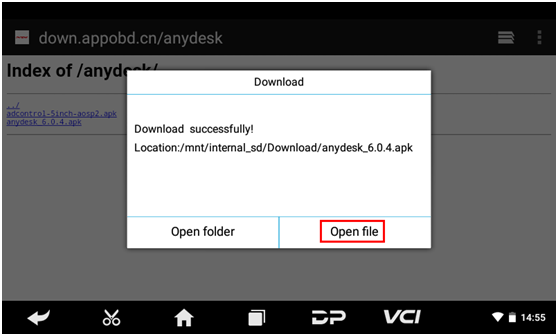

Please install both anydesk_6.0.4.apk and adcontrol-5inch-aosp2.apk
if adcontrol-5inch-aosp2.apk not installed, The device can’t be control by computer.

Install completed on android.
AnyDesk for Windows
Visit https://anydesk.com/en/downloads/windows to download AnyDesk.exe for Windows PC
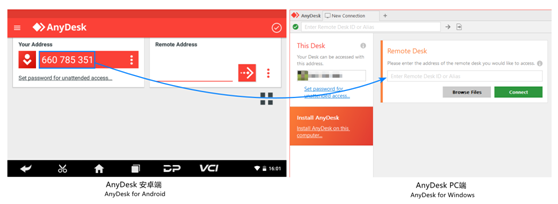
When device have incoming connect request, anydesk will show security warning, please accept.


OBDSTAR Tools DiagProgam has Stopped Error Solution
To obdstar users: regarding the problem “Unfortunately, DiagProgam has stopped.” that frequently appears recently, it is caused by compatibility issues.
A new apk version v3.8.1 has been released this week to solve this problem. (Note: The solution is applied to any of x300dp, x300 dp plus, odomaster, x300pro4.)
- For the obdstar machine which update service is valid, you can directly upgrade the apk to solve this problem.
- For the obdstar machine which update service expired, please clear the cache to solve the problem, the drawback is that this problem may occur repeatedly, because there is no way to upgrade the new apk v3.8.1 after the expiration, you have to clear the cache repeatedly.
Please look at the last paragraph on how to clear the cache.
And view obdstar DP Plus One Year Software Subscription
Attention Please:
Never restore factory settings, otherwise the software will be lost and there is no way to restore it.

Guide on how to clear the cache:
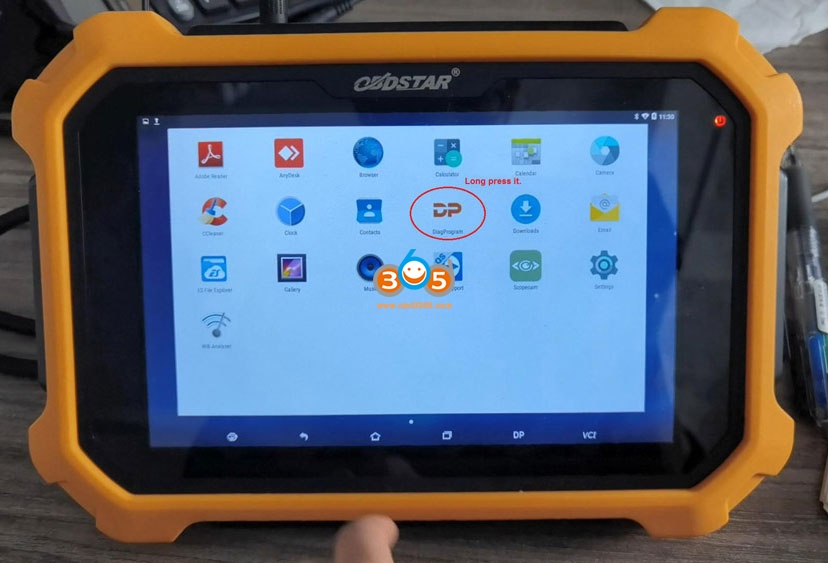
Enter ” DiagProgam”, long press it and drag it into “App Info”

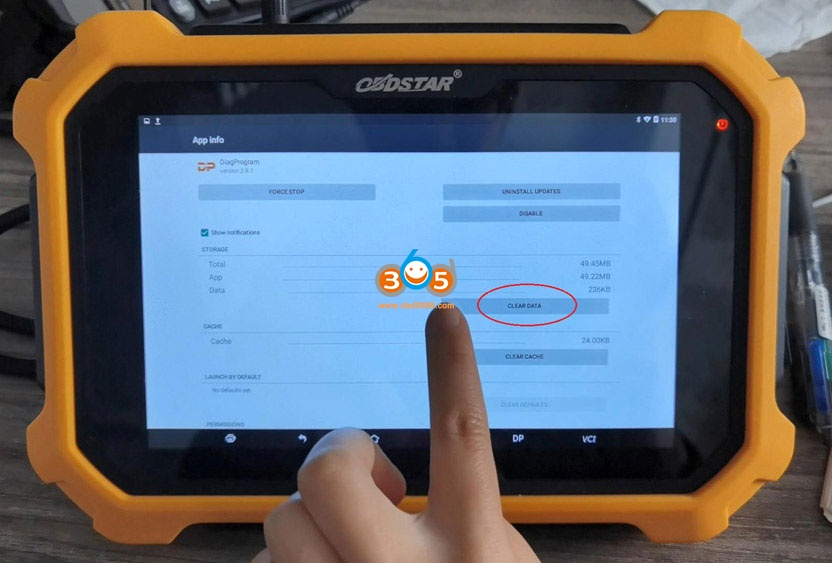
In the APP info, tap “Clear data” and “Yes” to confirm.

Okay, the catche is cleared, and the problem is solved. However, please keep in mind, better continue subscribing the update service and update the newest APK.

obdstar tech from https://www.obdii365.com/
How to update MDI2 Firmware via GM MDI Manager?
The reason why update GM MDI / MDI2 interface firmware is because it is compatible with the newest original GDS2 software, and only after doing firmware update can the newest v2020.12 Bosch software recognize it.
Here we go for GM MDI Manager update procedure.
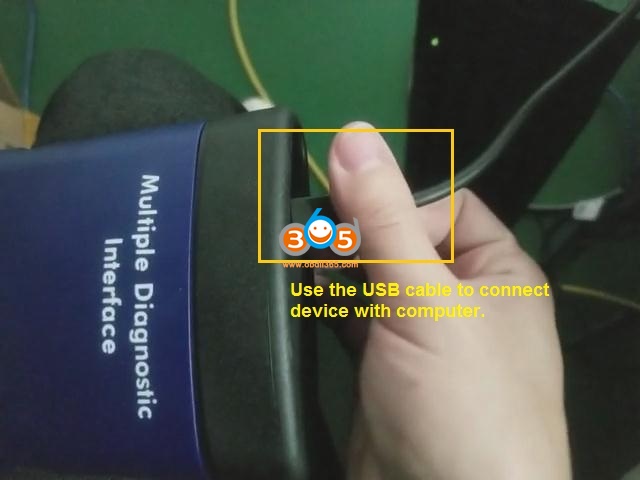
Press and hold the power button on GM MDI 2/ MDI device, meanwhile plug the power adapter to the device, until the power indicators turn green, release the power button.


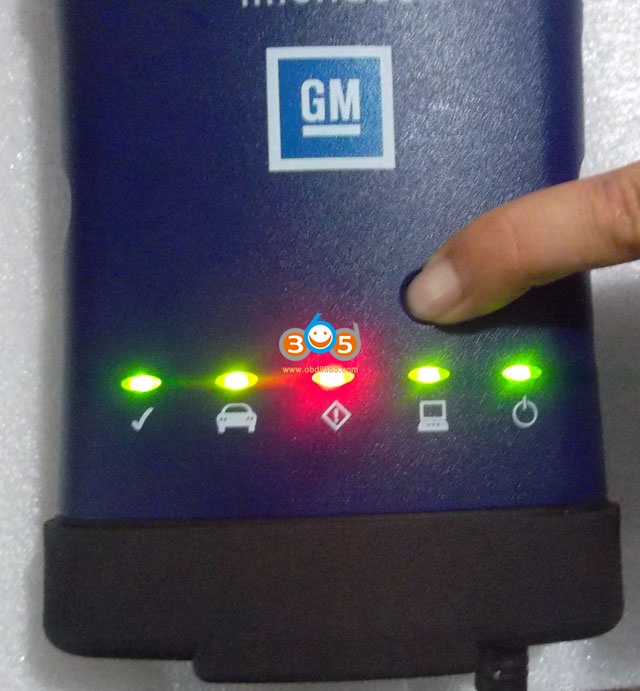

Then use the USB cable to connect device with computer.
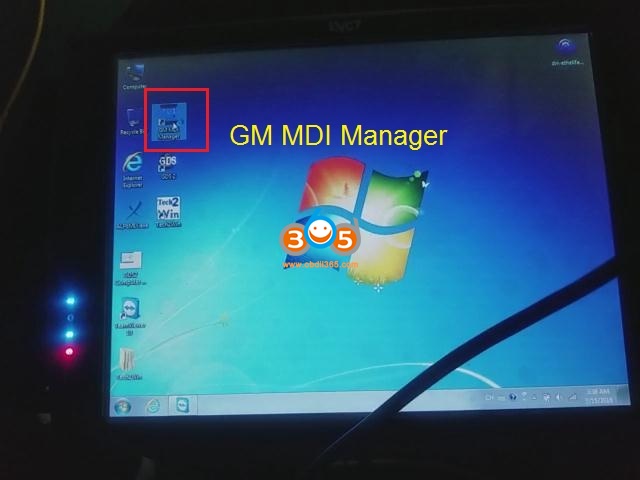
Install “GM MDI Manager 8.5.33.53 (the newest version)” and at the desktop open it.
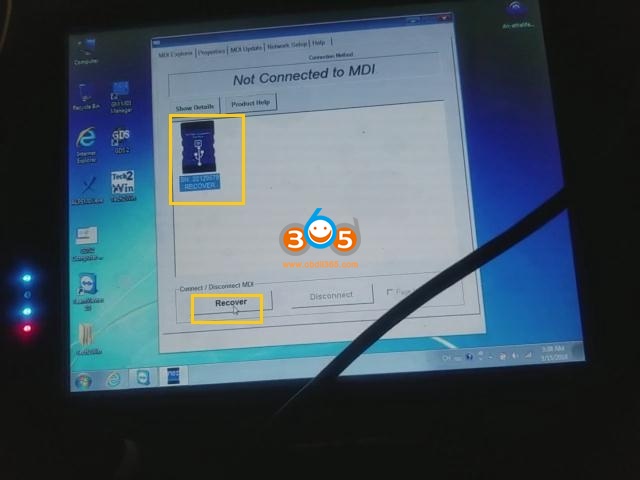
Click on “MDI” icon and then “Recover”.
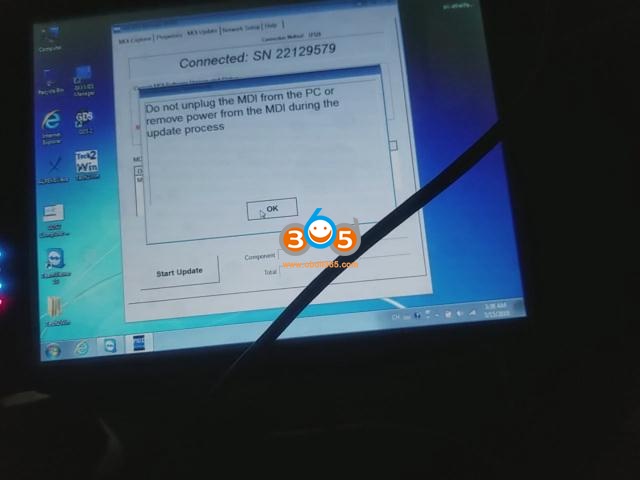
Read the guide “Do not unplug the MDI from the PC or remove power from the MDI during the update process.”.
Start… You can see the computer indicator will turn green, it means the MDI /MDI2 is communicating with the computer, and you will see the progress bar on the screen.
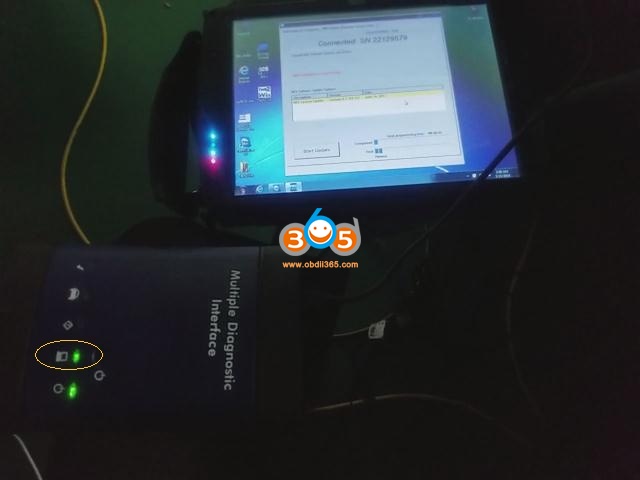
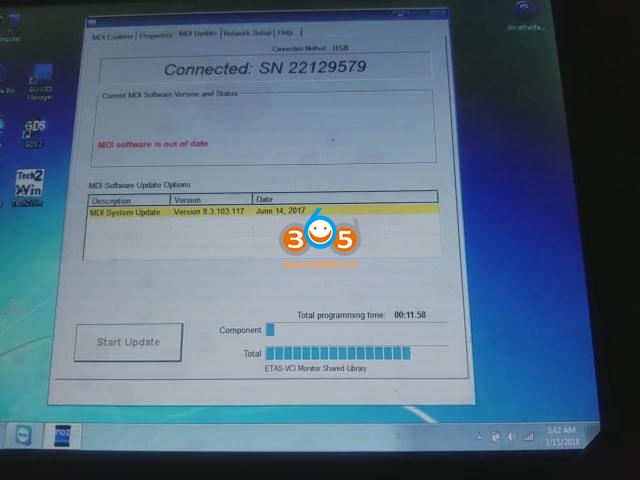
Alright, the MDI will now automatically restart. Wait until you hear the “Beep”, then the MDI s ready for use.
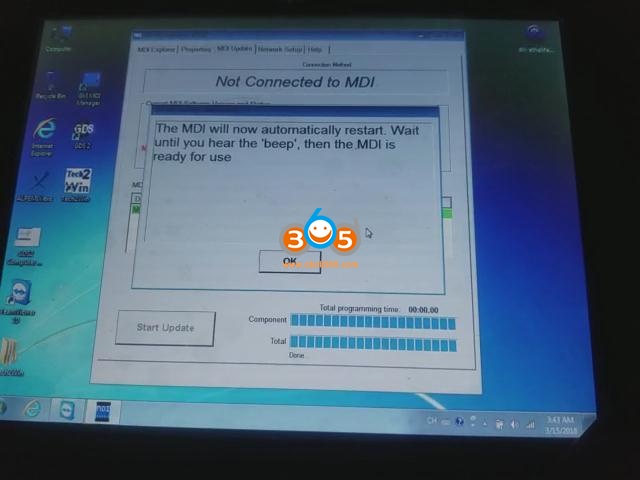
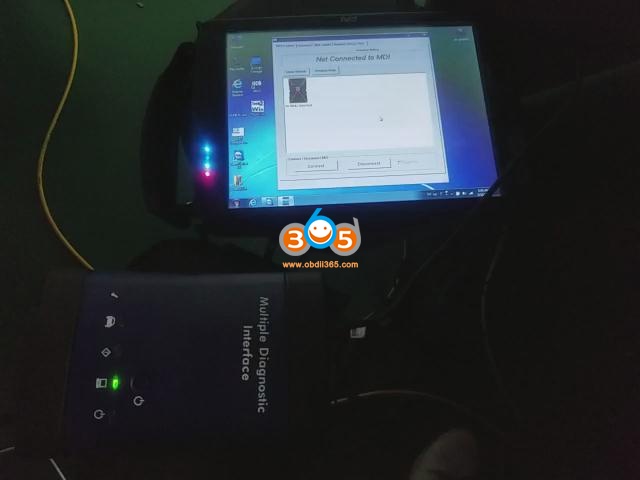
GM MDI Manager update successfully, you can see all of the indicator will turn green one by one, and one you are ready to connect MDI / MDI2.
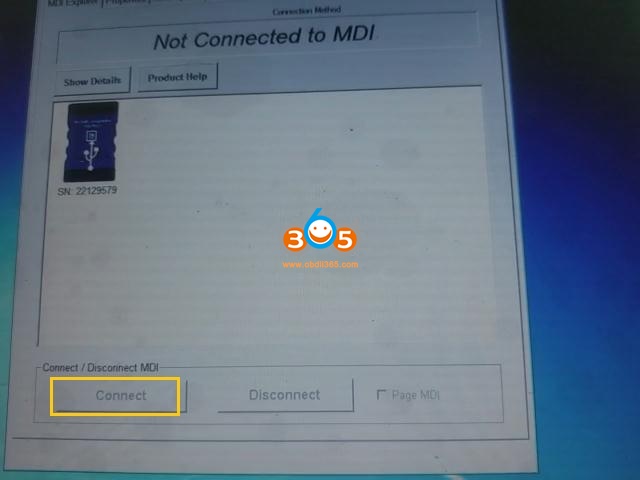
Enjoy!
http://blog.obdii365.com/2021/01/20/update-gm-mdi-mdi2-firmware/
Differences between the Autel IM608 and IM608 Pro
Question:
Here comes the table comparison of Autel MaxiIM IM508, IM608 and IM608 Pro universal key programmer.
| ●Standard Functions ▲Need extra adapters △Need XP400 Pro ○Need Xp400 Pro and extra adapters | Autel IM608 Pro | Autel IM608 | Autel IM508 |
| Programming | |||
| Read / Write EEPROM | Advanced | Intermediate | Basic |
| Read / Write MCU | Advanced | Intermediate | Basic |
| Read / Write Immobilizer | Advanced | Intermediate | ● |
| Read / Write Engine | Advanced | Intermediate | ● |
| Read / Write Mercedes Infrared Key | ● | ● | △ |
| Detect Remote Frequency | ● | ● | △ |
| IMMO | |||
| Smart Mode (Guided and Automated Key Learning Function) | ● | ● | ● |
| Auto detect make /Model/Year/System | ● | ● | ● |
| Read PIN (Add key / All key lost) | ● | ● | ● |
| Key generation /Key Learning / Remote Learning | ● | ● | ● |
| IMMO ECU Reset / Adaption | ● | ● | ● |
| IMMO ECU Refresh /Coding | ● | ● | ● |
| Backup /Restore IMMO data | ● | ● | ● |
| Benz 3rd generation IMMO add key, all key lost via OBD | ● | ● | △ |
| Read / Write/Erase Benz ESL_W209/W906 Data | ▲ | ○ | ○ |
| Benz OE NEC Key Learning | ▲ | ○ | ○ |
| Audi Q5/A4/A5 2015 -2017 Key learning via OBD | ● | ● | ● |
| Volkswagen /Audi MQB add key, all key lost via OBD | ● | ● | ● |
| Volkswagen /Audi 4th generation IMMO add key, all key lost via OBD | ● | ● | ● |
| Volkswagen /Audi 5th generation IMMO add key via OBD | ● | ● | ● |
| BMW FEM/BDC Key learning and adaption | ● | ● | ● |
| BMW CAS4/3/2/1 key learning | ● | ● | ● |
| BMW EWS3 key learninjg | ▲ | ○ | ○ |
| 2015-2019 Jaguar Land Rover write key via Dump | ● | ● | △ |
| Volvo Smart key /Fobik smart key learning | ● | ● | △ |
| Volkswagen /Audi/BMW/Benz key unlock | ▲ | ○ | ○ |
| OE-Level Diagnostics | |||
| All systems for over 80 makes | ● | ● | ● |
| MaxiFlash JVCI (J2534 ECU Reprogrammer) | ● | ● | |
| ECU coding | ● | ● | |
| Active test | ● | ● | Basic |
| Complete Service functions | Advanced | Intermediate | |
| Features | |||
| Rechargeable li-ion battery | 15000 mAh | 15000 mAh | 5000 mAh |
| Internet Updatable | Wi-fi | Wi-fi | Wifi |
| Multilingual | ● | ● | ● |
| One Year Warranty | ● | ● | ● |
| Touchscreen | 10.1 inch | 10.1 inch | 7 inch |
| Memory | 64GB | 64GB | 32 GB |
| Processor | Hexa-core | Hexa-core | Quad-core |
| Camera | 8.0 Megapixed | 8.0 Megapixed | |
| Resolution | 1920 ×1200 | 1920×1200 | 1024×600 |
The only difference between IM608 and IM608 Pro is the programmer that comes with the tablet.
The tablets themselves IM608 and IM608Pro have no difference in terms of hardware and software. All keep the same.
As for the difference of XP400 and XP400 Pro, the main difference is the hardware upgrade. XP400PRO is more powerful.
But the good thing is you can buy XP400Pro and optional adapters together with any Autel key programming tool like IM508 and IM608 to have the same features with IM608Pro & XP400Pro and optional adapters.
Publicité
DIY solve CG Keys Not Read or Written to CGDI MB?
The last batch of CG keys was not read or written to the CGDI MB. The manufacturer CGDI MB recommends replacing the IR receiver and transmitter.
Here's the customer's good working experience on solving this issue.
There was neither time nor desire to buy it and wait. Therefore, I tried to install the IR receiver and transmitter from an old faulty original key. Now CGDI MB reads and writes perfectly again !!!
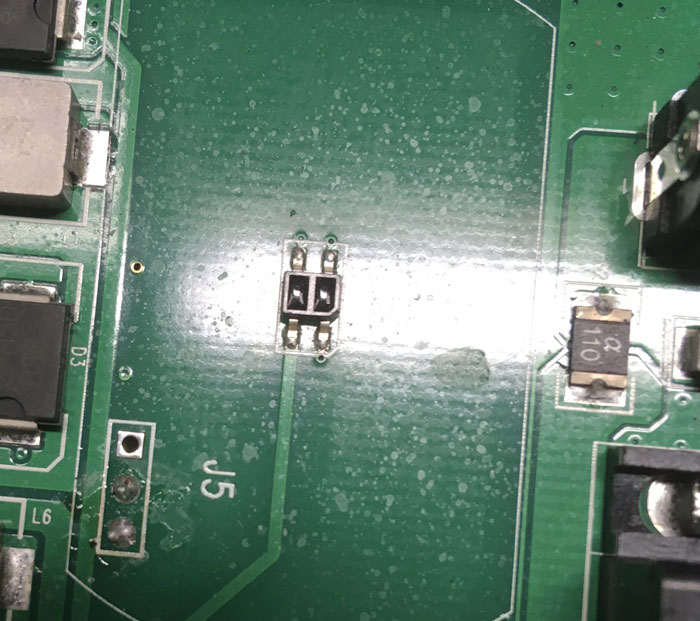
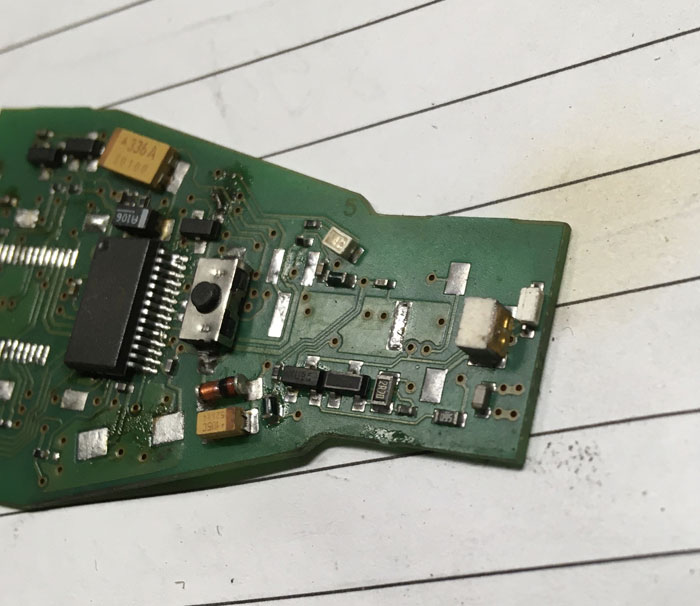
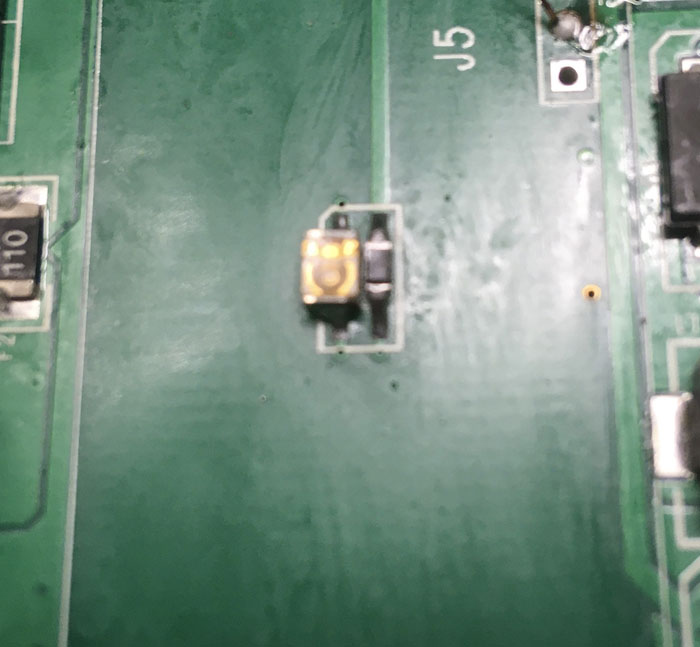
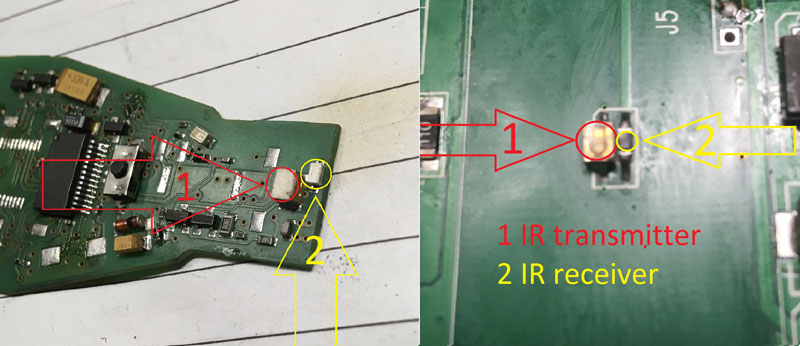
Regular keys labeled CG. Of the five keys, only one key was recorded from the fifth time. After replacing IR light and photo diodes, the keys can be read and written without problems.
Chevy Blazer ABS Bleeding using Vident iLink400
I have 2006 G6 GTP (CAN protocol), 2001 Blazer (J1850 VPW) and 2004 Avalanche (J1850 VPW) to activate ABS bleeding, and I found Vident Ilink400 Multi-System Scan Tool for GM on obdii365 where someone said it worked on a 2003 S10 for crank sensor relearn. Also found someone who said it read cam sensor retard. And another who said it worked on the Blazer ABS Bleeding procedure. Also found some people who had some troubles, but there is always people who can’t get things to work when they should. what I find interesting is that the manufacturer’s web site says it works on both OBD1 and OBD2 – so maybe this will work on 1995 OBD1.5?
Then , I went ahead and ordered one, it was $149 free shipping.
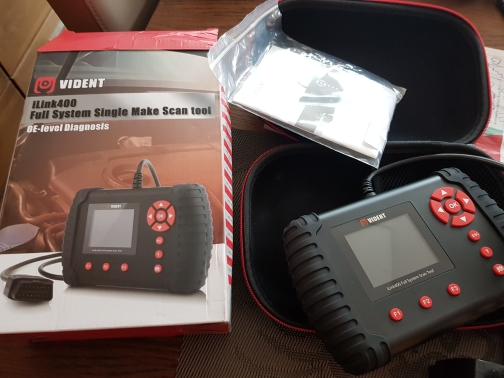
I’ll review the Vident Ilink 400 because it’s really good value.
I’m REALLY impressed with it. Downloaded and installed GM software update. Hooked up to my 2006 G6 GTP (CAN protocol), my 2001 Blazer (J1850 VPW), and my 2004 Avalanche (J1850 VPW). The Avalanche it does not automatically recognize the vehicle and forces me to enter some info about the vehicle manually. Apparently does ABS brake bleeding and crank sensor relearn on all 3 GM vehicles (actually tried the brake bleeding procedure on the Avalanche). Did not look for cam sensor retard on the Avalanche and the G6, but does read the all-important Cam Sensor Retard on my Blazer. Saw it does injector balance test on Avalanche. Does misfire counters for all three. Plus was reading BCM and HVAC codes on Avalanche. Red and identified a entertainment (radio) code on the g6. However could not find TCCM module on either Blazer or Avalanche (both 4-button). Too much to list – has TONS of capability. Way, way more than my HP Tuners VCM scanner software. But remember you only get one manufacturer’s PIDs – pay $60 each for any more you want to install. The box claims it’s compatible with OBD1 and OBD2 but no OBD1 connector included so who knows. A little clunky to get through the menus, but it’s a handheld scanner.
I would say anyone with 1998+ Blazer is VERY safe to buy this scan tool Vident Ilink 400 and will be EXTREMELY happy with it for the price. It is obviously pretty cheaply made and Chinese, but should be OK.
Have no idea how it will work with 1995 (OBD1.5), or 1996-1997 Blazers (we know some Bluetooth scanning apps have trouble with GM PIDs on 1996-1997). I’ll try to review this scanner more thoroughly sometime this fall and post it. In the meantime, if anyone collects data using this scanner on the 1995-1997 Blazers, please let me know so I can include that info. I have no idea how it will work (GM PIDs and bidirectional controls) with very new vehicles (ie 2013+) but I believe the CAN protocol is consistent through 2012 and it seem to do the most module types for the CANBUS vehicles so they should be good to go.
The following paragraph is my personal experience and point of view on Chinese GM Tech2, Blue Driver for GM when comparing with Vident Ilink 400:
Take a typical Bluetooth OBD app for example, tons of these out there – only a few do enhanced GM PIDs (sensor/data monitoring) and even fewer have all the useful specific PIDs for a Blazer such as cam sensor retard. Specifically these are Car Gauge Pro (98+ blazer only – includes enhanced PIDs), Dash Command w/enhanced GM PID purchase (all years Blazer), Blue Driver (I have not personally reviewed but seems to work for iPhone users). Car Gauge Pro and Dash Command requires a separate Bluetooth OBD2 adapter to be purchased – recommend BAFX one. The rest have big promises, little susbstance. However, please be advised that none of the Bluetooth apps do Brake Bleeding or Crank Sensor Relearns, which is what the Ilink400 is really about.
At $300+ you can buy Windows software that will do the Crank Sensor Relearn, but the brake bleeding is not supported on HP Tuners anyways. Don’t know about the others. HP Tuners, Autoenginuity, EFI live.
At $150 you can buy Windows software Scan XL Pro that pretty much equals the functions of Dash Command – same company – different platform – don’t have to buy the Enhanced GM PIDs for each vehicle.
Some people love their $350 Chinese Tech 2 and claim is works just like the GM Tech 2. I have zero experience with either one.
So I was quite excited to find the Ilink400 would do both brake bleeding and things like the crank sensor relearn and HVAC. The handheld scanner I bought and returned before buying mine would only do the brake bleeding + simplest generic OBD2 PIDs.
For casual Blazer diagnostics, for under $50 I recommend Dash Command or Car Gauge Pro (Car Gauge Pro does more on 1998+ Blazers, but not as intuitive to use and is poorly documented). If you feel the need for crank sensor relearn or brake bleeding or more bi-directional control, then for under $150 the Vident Ilink400 seems made to order. I like them ALL and find uses for each!!! The only one that does it all is the factory Tech 2.
Vident Ilink400 gm– just figured out the TCCM IS reachable using the Ilink400, but you find it under Powertrain (also Cruise Control is found under powertrain). Looks like you can monitor the status of various switches and their positions + much more. Found this when working on my Avalanche cruise control. Brake switch was not working and you could see the status of all the cruise control switches. It’s a great little handheld.
Enjoy!
https://www.obdii365.com/service/vident-ilink400-positive-review-on-chevy-blazer.html
Solved! Lonsdor K518 Missing Renault Cars After Update
Lonsdor K518S / K518ISE question: after today's update I lost a lot of Renault cars, also few others? Anyone else? I have full year free subscription. I purchase Lonsdor 2 months ago.. I have paid subscription till October.01.2021


Finally!
Problem solved with "Force update"
Path:
Enable the network connection -> one key update--force update

Good luck!
K518 paid subscription on sale:
AT-200 V1.8.2 Adds VAG Porsche EGS Clone Models
CG AT-200 ecu programmer & ISN code reader released newest software V1.8.2 (2020.12.29).
1.Added MED17/EDC17 Data processing tools(Audi/Seat/Skoda/Volkswagen(VW) 4,5 generation anti-theft) engine data analysis modification
4 generation data:VIN, CS, Status, Anti-theft, MAC, PIN
5 generation data:VIN, CS
2.Added Audi/Seat/Skoda/Volkswagen(VW)/Porsche EGS clone models:
DL382(TC1784), DL501(TC1766), DQ250(TC1766): read and write DFLASH, EXT DFLASH, PFLASH
3. Added ECU(Mini)read and write ISN, VIN: MED17.2, MEV17.2.2, MEVD17.2.2
4. Added ECU(Audi, Citroen, Mg, Seat, Skoda, Volkswagen(VW)) read and write VIN:
MED17.1, MED17.5.5
5. Fix some bugs and optimize software performance
Free download AT200 V1.8.2
Publicité
Autel MS906BT Reset 2019 Corvette Z06 Airbag
I recently purchased a 2019 Z06 3LZ from an insurance auction. It was damaged in the right front wheel area but thankfully there was no frame damage. The steering wheel airbag was blown along with both sets of seat belts and the pre-tensioners. Everything I had read indicated that the SDM module would have to be either replaced or sent off to a company that resets these modules. So acting on that information, I went through the trouble of removing the module assuming that I would send it off for a reset. Thankfully, I didn't do that. I replaced the driver airbag and saved the clock spring by replacing the melted connectors that plug into the airbag. The seatbelts and tensioners were replaced (bought new ones). For the heck of it, I decided to plug the module back in just to see if it would recognize that the new parts fixed all of the stored codes. I have an Autel MS906BT scan tool and I turned on the accessory function to connect with the system. After checking the codes, it showed that all of the previous restraint codes were not current on this ignition cycle. That was good news but of course the airbag light on the dash was still on. I decided to clear the codes and the dash airbag light went out and no fault codes were found. Disbelieving what just happened, I turned off the ignition and then went through the process again only to find that in fact, all restraint codes were gone and there was no airbag light on the dash.
So unless something happens when I start the car (I am still repairing damage including the oil tank so I can't start the car yet) or there is something that I don't know about or understand, it appears that you can clear the codes from the SDM (at least on this model year) and that you don't have to go through the expense of replacing or sending out the module for reset.
Credits to @ 71corvette !
Thanks for his posting. Should be helpful to some folks down the road.
Autel AP200 Benz Sprinter Test and Report
Hi guys, I put together what Autel AP200 obd2 scanner can diagnose for Mercedes Sprinter.
- How to use Autel AP200 to diagnose NCV3/906 Sprinter
Question: For a T1N the ZUH Heater Booster (aka eSpar) is listed. Has anyone with a T1N tried to connect to their eSpar Heater Booster?
Yes, it works and you can see the startup, running and shutdown sequence in the live data.
Just received my Autel AP200 and well impressed by the depth of info available in Sprinter.
One thing I noticed was that there are 2 ways to access the data for a NCV3/906 Sprinter…
(1) Choose “Sprinter”, then “906 (CAN bus, 2006 onwards)” – or something like this, I’m writing from memory.
or
(2) Choose “SprinterIII 906”, then “906.655”, then select the Engine and Transmission codes from drop-downs.
Both methods found the same 12 modules on my Sprinter, but method 2 was *much* faster. Method 1 seemed to be scanning every possible module to determine which was present. Of course with method 2 you need to know the Engine and Transmission codes, but these can be found easily from the VIN number using the Mercedes WIS software.
In practice once I got an Autel AP200 itself, I found the information it gave was quite understandable. It’s been a while since I’ve used it, but if I remember correctly there are a couple of ways it can be set up and only 1 way works properly.
- Autel AP200 Spinter III Review
I just attempted this. As a Dodge, the US VIN is not recognized and the alternate VID states that it’s covers too broad of a vehicle range and advises to manually select body/engine/transmission specifics. Using the Diagram-BENZ app under Sprinter and Sprinter lll has produced mixed results but so far ave managed to teach-in DPF, force active regen, and monitor differential pressure. It even monitors swirl valve activity/position, displays which circuit is controlling rail pressure, and allows you to test egr actuation, all common issues with OM642 V6 engines.


- Used mine Autel AP200 for first time today just to remove SRS dash light after changing passenger seatbelt. Did the manual input using only the 904.6 options and worked great.
- I have an 08 Dodge Sprinter. Used an m802 on it before – Chrysler seems to produce more codes, but Europe > Sprinter gives slightly different codes.
Which one should I get as the default? Is it worth it subscribing to the other one as well?
Reply:
The Benz_Sprinter selection should cover all variations.
Here in the US, to get the full at least more systems reporting, we have to tell is “WDB” *and* 906 *and* (sometimes) Mexican.
It’s rather hit-and-miss.
- For sprinters made between 2002 and 2006ish with a dodge logo on them- you need to get the Dodge diagnostic package!! (Obviously)
Reply:
I do not believe this is correct. Mine works with Benz_Sprinter manual vehicle selection and several people have chosen the Dodge and had to get Autel to reset their free option, removing it so they can choose Benz_Sprinter.
If you choose generic OBD, does it talk to the vehicle? If not, you have a hardware connection issue.
- Just ordered Autel AP200 code reader, but am unclear how to find out if mine is a ‘903’ or something else as mine is also a dodge and the vin may also not be recognized. 2006.
Reply:
If it is a 2006, choose Benz_Sprinter from their “store” as your free vehicle. Then choose manual selection and then Sprinter, and then either the lines starting with 901 or YD and then your country. Both work, with different modules working on both. Then try the different modules. If they don’t talk, try the other vehicle selection. You might have to use both to get all of them as Autel did not record which modules were in which vehicle.
Finally, someone asks “Is there a list of Autel AP200 compatible years/motor sizes (Sprinter of course) for this unit?”
(Just a joking! ) for $60 you can buy it at obdii365.com, it’s free shipping.
For the Sprinter coverage, please read the following PDF, which shows the supported data for each vehicle.
https://www.obdii365.com/upload/pro/20032615852025103060.pdf
Lonsdor K518 Update Latest Toyota AKL No Dealer Code
Lonsdor K518ISE released super update- latest Toyota & Lexus smart key all keys lost and add key.
Supports following type of keys:
Emergency start
PKE
Push-to-start
Remote
Lexus 0440 ES US GS series
Toyota 0410 Avalon Wildlander RAV4 Highlander
No need dealer code
Connect network to fast calculate!
Buy AKL license get whole year AKL free online calculation.
Use H0440C to collect data and generate with K518/KH100+ directly.

